


Read summarized version with
 ChatGPT
 Perplexity
 Gemini
 Claude
 Grok
Grok
Want to embed Google reviews on your website for free and showcase what your customers are saying about your business?
Google reviews are one of the most trusted forms of social proof, helping businesses build credibility and influence potential customers. In fact, 49% of people trust online reviews as much as personal recommendations.
One of the easiest ways to display Google reviews on your website is by using a Google reviews widget. A widget automatically collects reviews from your Google Business profile and displays them on your website in attractive layouts like grids or sliders. This helps businesses add Google reviews to their website without coding while keeping reviews updated in real time.
In this guide, you’ll learn how to embed Google reviews on your website step by step, along with the easiest methods to display them and turn customer feedback into powerful social proof.
Add Google Reviews on Website For Free


What Does it Mean to Embed Google Reviews on Website?
Embedding Google reviews on a website means displaying customer reviews from your Google Business Profile directly on your webpages. Instead of asking visitors to leave your site and check reviews on Google, embedded reviews allow them to see real customer feedback while browsing your website.
When you embed Google reviews, they appear as part of your website’s content—often in formats like sliders, grids, or review lists. This helps businesses showcase authentic experiences from their customers and build trust with potential buyers.
Displaying Google reviews directly on your website also improves engagement, as visitors can quickly read testimonials without navigating away from your page.
How to Embed Google Reviews Widget for Free
Using a reviews aggregator, you can easily embed Google reviews on your website without writing any code. These tools collect reviews from your Google Business Profile and display them on your website in visually appealing formats.
Follow the step-by-step process below to embed Google reviews on your website using Taggbox.
Step 1: Create Taggbox Account and Set Up Your Dashboard
- Log in to your Taggbox account. If you are a new user, sign up for a for free.
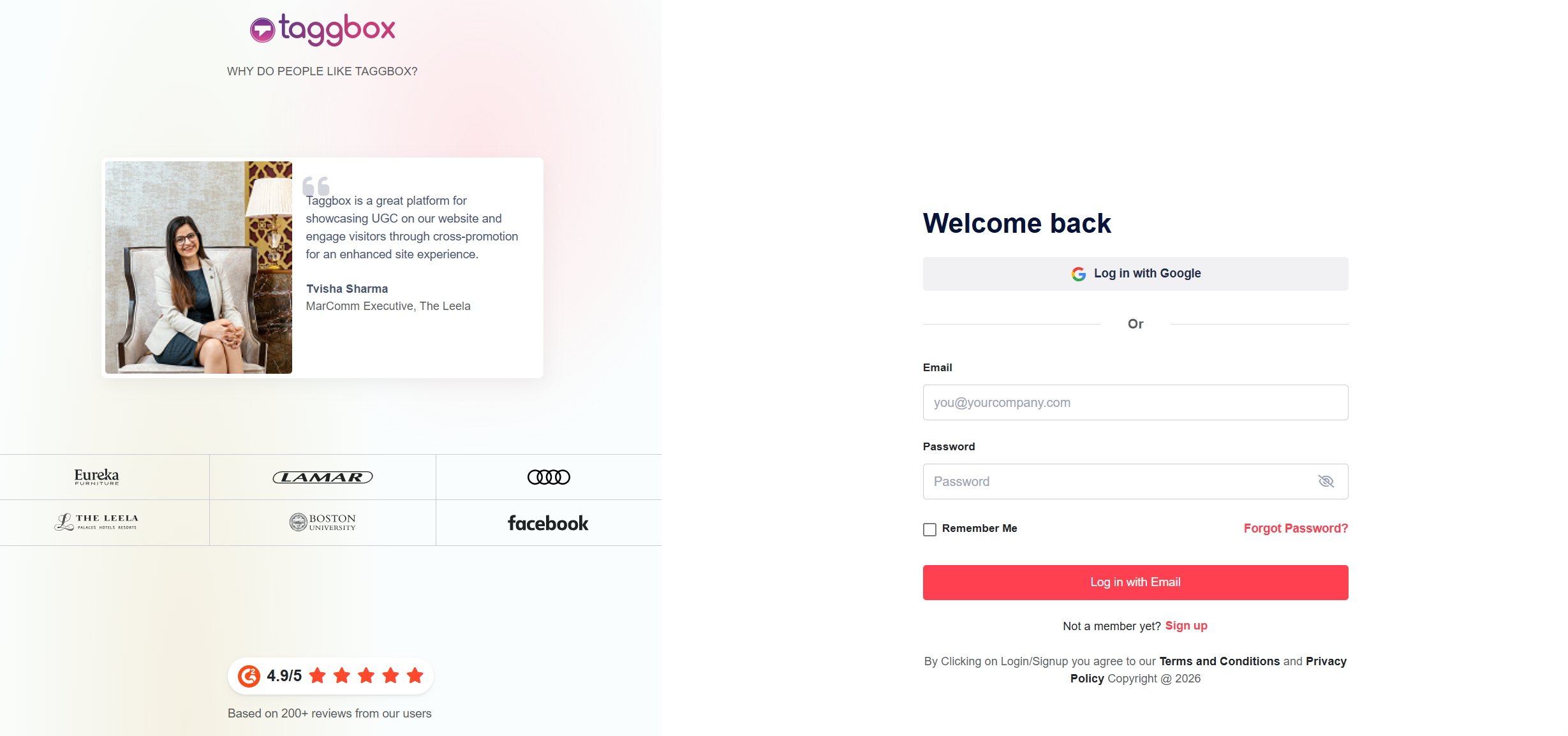
- A dashboard will appear, featuring options – Shoppable Gallery on the website, Social Feeds on Screen, or Social Feeds on the website. Choose ”Social Feeds on the Websites’‘.

- Select industry, add contact information, and provide other required information.
Step 2: Connect Your Google Reviews Source
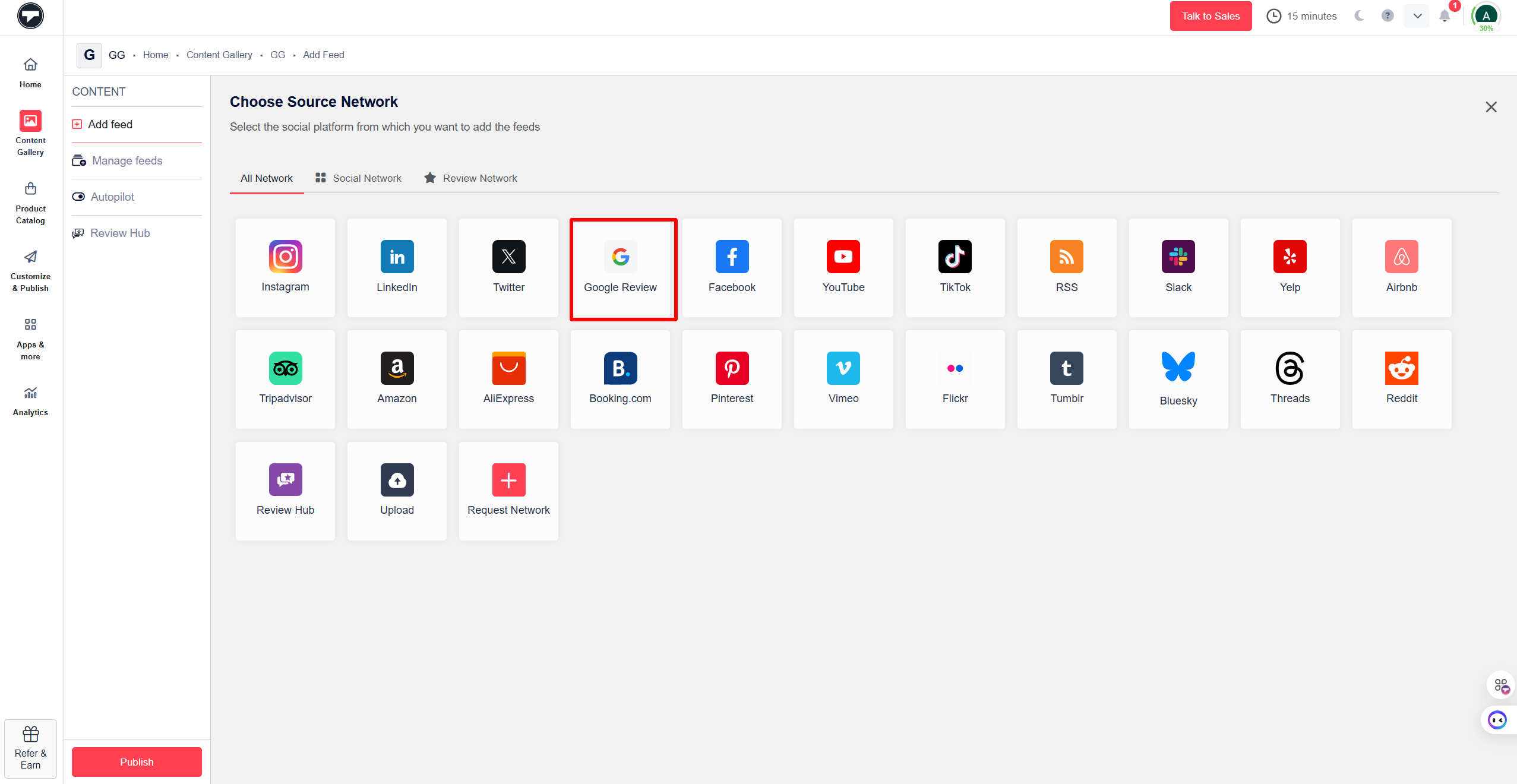
- Now Choose ”Google Review” as your Source.
- You have two options to filter the reviews you want. These options are as follows.
Places: Enter the specific address of your business to fetch reviews.
My Places: You can connect your own Google Business Account to fetch the reviews you get.
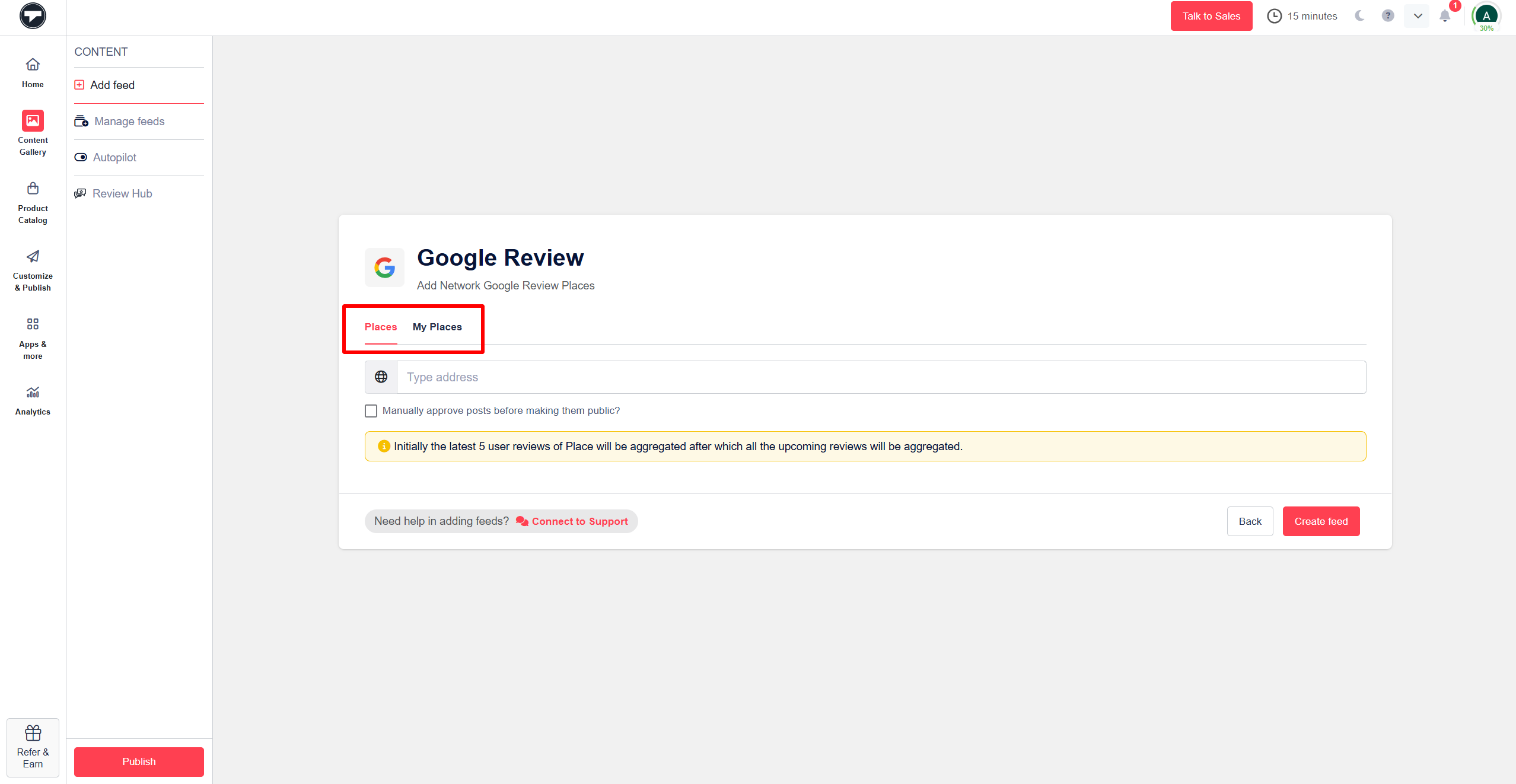
- Click on ”Create Feed”.
Step 3: Moderate and Customize Your Review Feed
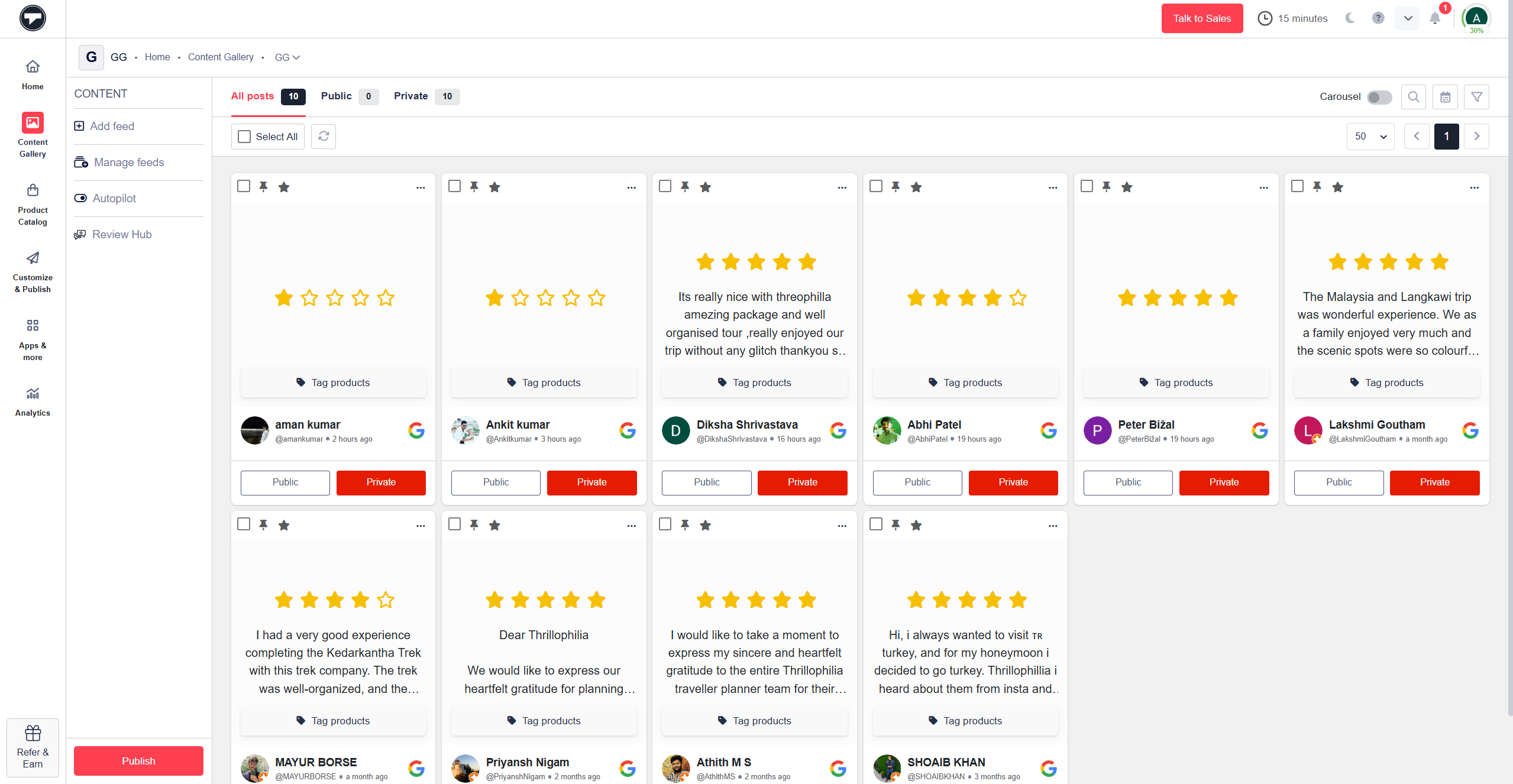
- Once your feed is created, you’ll be taken to your Content Gallery dashboard, where you can easily moderate the feed.
- You can remove any irrelevant content manually or let the Autopilot feature handle it for you automatically.
- Mark reviews as public or private depending on which ones you want to display.
- Next, click “Publish” in the left sidebar and select “Website” as your publishing channel.
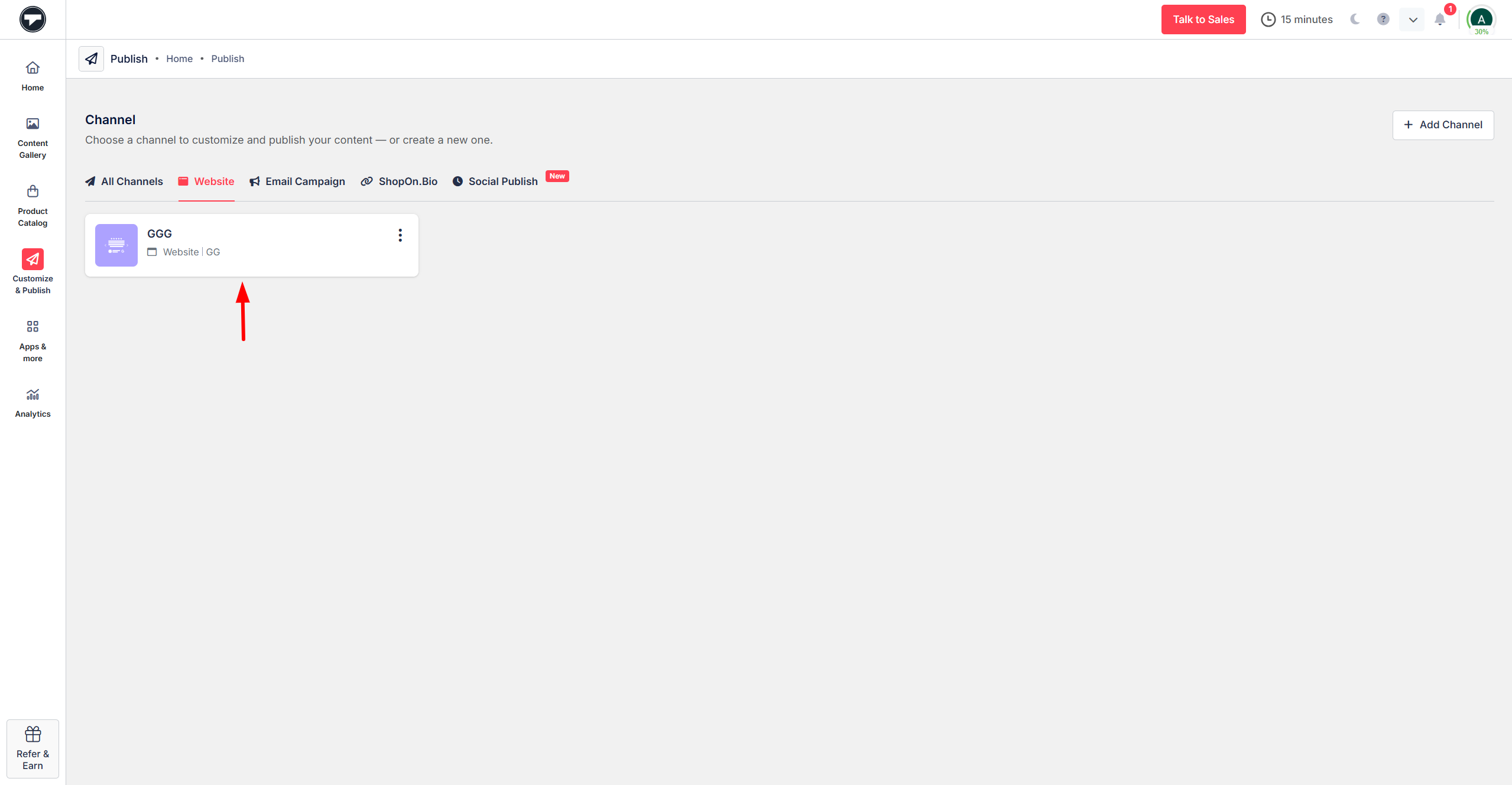
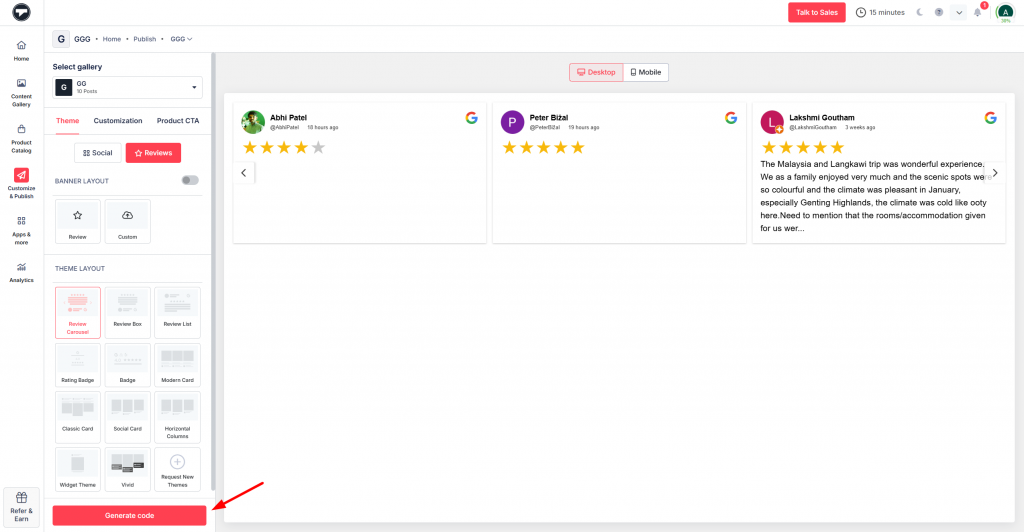
- Now, personalize your Google Review gallery by selecting your preferred theme, layout, CTA, fonts, and other design elements.

Step 4: Generate the Embed Code and Add It to Your Website
- Once you’re done, click on ‘Generate Code’ to proceed.
- Choose your preferred content management system (CMS) platform.
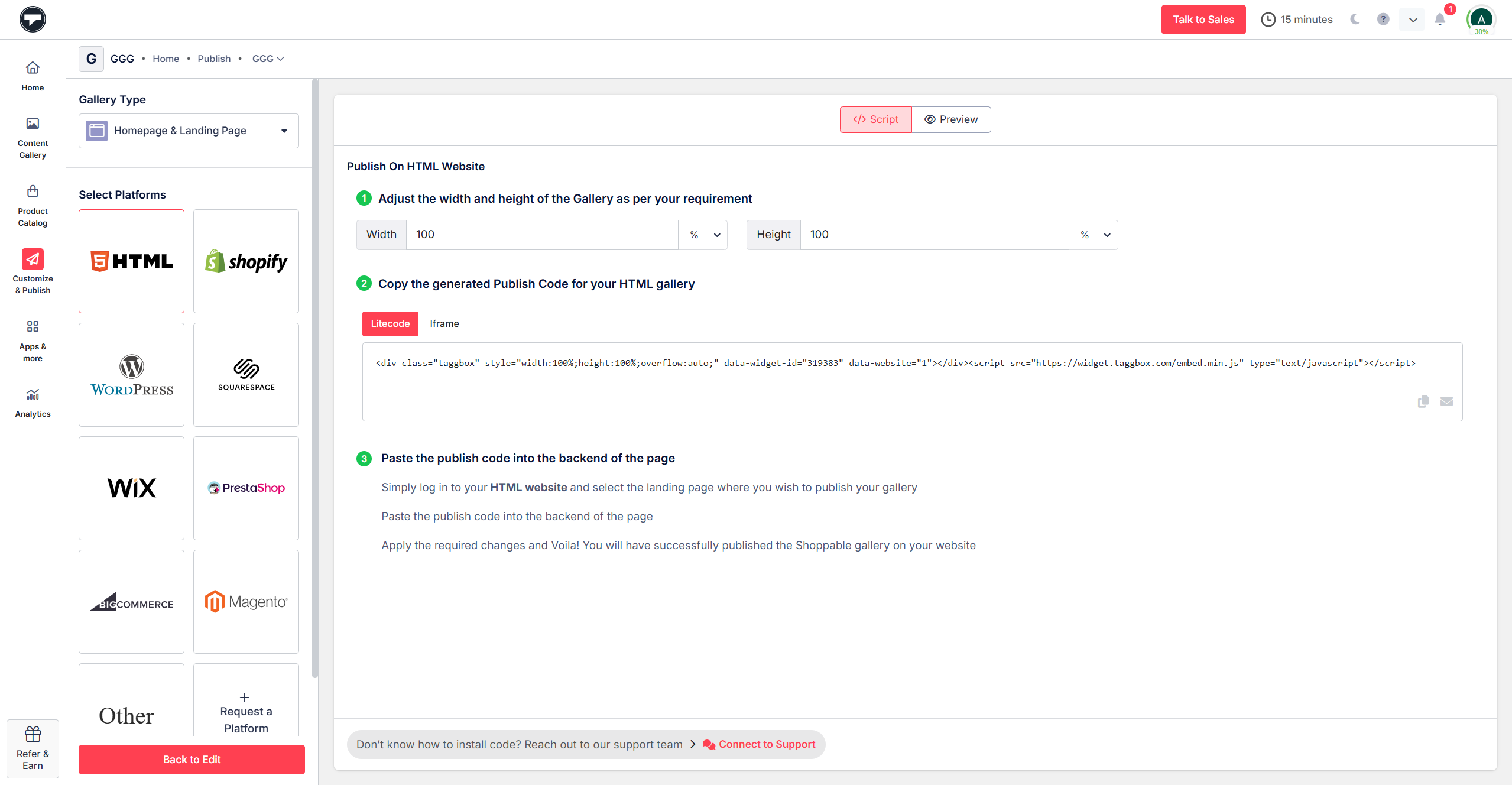
- Paste the code on the back end of your website. You’ve successfully embed Google reviews on your website.
Use Taggbox Google reviews widget for website to collect, customize, & display reviews on your website with a simple embed code.


Video guide: How to Get Google Reviews on Your Website?
Here’s a quick video guide showing how to embed Google reviews on your website for free.
How to Display Google Reviews on Website Using Different CMS Platforms
Displaying Google reviews on your website is easier than ever, thanks to modern CMS platforms and review widgets. Whether your website is built on WordPress, Shopify, Wix, Squarespace, or a custom HTML platform, you can easily embed Google reviews on your website using a simple embed code.
A Google reviews widget for a website allows you to collect reviews from your Google Business Profile and display them in visually appealing formats such as sliders, grids, or testimonial layouts. This helps businesses add Google reviews to their website without coding while ensuring that the reviews update automatically whenever new feedback is posted.
Below are some of the most popular CMS platforms where you can display Google reviews on your website.

If your website is built with custom HTML, you can still embed Google reviews on your website easily.
- Copy the Google reviews widget embed code.
- Log in to your HTML website’s admin panel.
- Open the file of the desired page.
- Paste the embed code in the chosen section and save your website’s page.
- Your Google Reviews Widget for HTML is now embedded on your HTML website.

WordPress is one of the most widely used CMS platforms, and embedding reviews is very straightforward.
- Sign in to your WordPress website.
- After logging into your WordPress site, go to the “Pages” section and click “Add New”.
- Click the “+” icon in the top-left corner and click on the “Custom HTML”.
- Paste the Google Reviews embedded code in the text area.
- Click on the preview tab to preview your Google Maps Reviews Widget. After previewing, click “Publish” to see the Google reviews widget on wordpress in action.

Wix offers an intuitive website builder, making it simple to embed Google reviews in your website.
- To add Google Reviews on a Wix website, log in to your Wixaccount and go to the desired webpage.
- Click on Blog and select Posts to create a new post.
- Click “+” on the menu bar’s left side. Select and choose “</> HTML Code.”
- Insert the generated code in the text box.
- Click “Update” to apply the changes, and your Google Reviews Widget on Wix website will appear on the selected page.

Squarespace users can also display Google reviews on their website using an embed code.
- Log in to your Squarespace website and select “Edit.”
- Click “(+)” to add a block and add the content in “Empty Page”.
- After adding the title (if any) in the blank space, click on the “(+) Add Block” button.
- The dropdown list will be displayed. Choose the “</> Code” from the list.
- Copy the Taggbox Website Widget code and paste it in the given box.
- After pasting the embedded code in the box, click the “Save” button and enjoy your Reviews Widget for the Squarespace Website.
- To add Google Reviews to Squarespace, follow the same process with the appropriate Google Business Reviews widget code.

Shopify store owners can easily add Google reviews to their website to build trust with potential buyers.
- Sign in to your Shopify account.
- Under “Sales Channels,” click “Online Store.”
- Choose “Pages” from the dropdown > Add a new page or edit your existing page.
- On the Page details, click on “(<>)” to show the HTML icon.
- Paste the embed code to embed Google Reviews on Shopify in the text box and click the “Save” button. The page will be created after you save the code.
- Finally, click on the View Page Button. You can now see the Reviews Widget for Shopify in Action!

- Log in to the Weebly website.
- On your existing Weebly site, click the “Pages” section on the top-most menu bar, then click the “+” icon.
Choose what type of page you would like to add. - After selecting a page, give your page a name and click “Done”.
- On the top menu, click on “Build.” Then, drag the “Embed Code” option from the sidebar to your page.
- Now, click the “Click to set custom HTML” and the “Edit Custom HTML” button.
- Please copy the code from the created Taggbox Google Review Widget for Weebly and paste it in the upper right corner.
- Your widget will be displayed on the site. Then click on the “Publish Button.” Finally, click the link to your site. And here you’re done!

- Log in to your Elementor website and go to the page or post where you want to display the Elementor Google reviews widget.
- In the Elementor editor, locate the HTML section and drag it onto the page.
- Paste the copied embed code into the HTML widget.
- Save your changes in the Elementor editor. Now, finally, display the Google reviews on the Elementor site. And here you’re done!

- Log in to your Page Cloud Website.
- The dashboard will open and consist of your existing pages.
- From the top menu, select “Blog.” You can add a new blog or import an existing one.
- If you are writing a new post, a blank page will open.
- Enter the text with the title “Enter Post Content.” You will see a “+” icon; click on the icon.
- You will see four options after clicking on the “+” icon. Click on the “<> Add Embed” option.
- A box will open. Copy your Taggbox Google Maps Reviews Widget Code, paste it into the box, and click the “Add” button.
- Congratulations! You have embedded the Customer ratings on your Page Cloud Website. Publish your PageCloud website to make the widget live for visitors.

- Copy the Embed Code: Log in to your Taggbox account and navigate to the widget editor. Select the widget to embed and copy the provided HTML embed code.
- Log in to Drupal Admin Panel: Access the admin panel of your Drupal website. You can create a new page for the Reviews widget or edit an existing one.
- Embed the Code: In the page editor, locate the section where you want the Google business reviews widget to appear. Switch to the editor’s HTML or Source Code view and paste the embed code you copied from Taggbox.
- Save and Publish: Save your changes and publish the page. Your Reviews carousel widget will now be live on your Drupal website.
Generate your embed code and easily display Google reviews on any CMS platform without coding.
How to Add Google Reviews to Website Using the Native Tools?
Method 1:- Embed Google Reviews Directly Using Google My Business
To add Google reviews on your website using Google My Business, follow these simple steps;
- Go to google.com/maps
- Enter your Google Business profile in the search bar and select it.
- Click the “Reviews” tab.
- Choose a review that should be showcased on your website, and click the three dots in the upper-left corner of that review.
- Select the Share Review option.
- On the popup, click the “Embed…” tab.
- Click Copy HTML to copy the embed code.
- Now, log in to your website’s admin panel.
- Create or update the page where you want the review to appear.
- Paste the copied HTML code into the page editor.
- It will show the Google map with your company name, review count, and link to your reviews.
- Save the changes to your page.
Method 2: Add Google Reviews to Your Website Using Google API
Integrating Google Reviews directly through the Google API is secure and convenient. However, it requires basic coding skills.
Here’s a step-by-step guide to help you embed Google Reviews on your website without third-party tools:
- Go to Google Cloud Platform.
- Create a new project or select an existing one.
- Enable the Places API for your project.
- Generate an API key to access the Google Maps and Places services.
- Visit the Google Place ID Finder.
- Search for your business name or location to get the unique Place ID for your business.
- Add this JavaScript function to the <head> section of your website:
<script>
<script src="https://maps.googleapis.com/maps/api/js?key=[API_KEY]&libraries=places"></script>
<script>
    function fetchGoogleReviews() {
        const placeId = "[PLACE_ID]"; // Replace with your Place ID
        const map = new google.maps.Map(document.createElement('div'));
        const service = new google.maps.places.PlacesService(map);
        const request = {
            placeId: placeId,
            fields: ['review']
        };
        service.getDetails(request, (place, status) => {
            if (status === google.maps.places.PlacesServiceStatus.OK) {
                const reviewsContainer = document.getElementById('google-reviews');
                place.reviews.forEach(review => {
                    const reviewElement = document.createElement('div');
                    reviewElement.innerHTML = `
                        <p><strong>${review.author_name}</strong></p>
                        <p>Rating: ${review.rating}</p>
                        <p>${review.text}</p>
                    `;
                    reviewsContainer.appendChild(reviewElement);
                });
            }
        });
    }
</script>
</script>Note: Replace [PLACES_ID] with the Place ID obtained in Step 2.
- Insert the following HTML wherever you want the Local business reviews to appear on your website:
<script>
<div id="google-reviews"></div>
<script>
    document.addEventListener('DOMContentLoaded', fetchGoogleReviews);
</script>

</script>
Why Embed Google Reviews On Your Website in 2026?
Embedding Google reviews allows businesses to showcase real customer experiences directly on their website. When you add Google reviews widget on website, you build trust, improve engagement, and help visitors make confident decisions.
A. Boosting Your Business
- Build Trust and Credibility: When you display Google reviews on your website, visitors see real customer feedback, which instantly builds trust and strengthens your brand reputation.
- Improve Search Engine Visibility: Adding fresh review content through a Google reviews widget for your website helps improve SEO and can increase your visibility in search results.
- Increase Conversions and Sales: Positive testimonials influence purchasing decisions, helping businesses convert visitors into customers when they add Google reviews to their website.
- Stand Out From Competitors: Businesses that embed Google reviews on their website showcase authentic customer experiences, helping them stand out from competitors without visible reviews.
B. Helping Your Customers
- Build Customer Confidence: When visitors see Google reviews displayed on your website, they feel more confident about choosing your products or services.
- Improve Transparency: Displaying genuine feedback shows that your business values customer opinions and openly shares real Google business reviews.
- Simplify Decision Making: Customers can quickly compare experiences and make informed choices when you add Google reviews to your website pages.
- Provide Strong Social Proof: Google reviews act as powerful recommendations from real users, influencing new visitors to trust your brand.
C. Elevating Your Website
- Increase Visitor Engagement: When you display Google reviews on website pages, visitors spend more time reading real experiences, improving engagement and reducing bounce rates.
- Enhance Website Appearance: A well-designed Google reviews widget for website integrates smoothly into your layout and makes your site look more professional.
- Add Fresh Content Regularly: Embedding reviews keeps your website updated with new customer feedback, which helps maintain relevance for search engines.
- Create a Review Hub on Your Website: When you embed Google reviews on website pages, your site becomes a central place where visitors can explore customer experiences and trust your brand.

Make Your Website More Trustworthy With Reviews.
Display Google Reviews on Website and grow authenticity and engagement!
Create Your WidgetBest Practices for Displaying Google Reviews on Your Website
When you embed Google reviews on your website, displaying them strategically can help build trust and influence customer decisions. Following a few best practices ensures your Google reviews widget for your website looks professional and delivers maximum impact.
1. Place Reviews Where Visitors Make Decisions
Instead of limiting reviews to a testimonial page, display them on key sections such as your homepage, product pages, or landing pages. Many websites use layouts like Review Boxes or Review Carousels on their homepage to highlight customer feedback immediately.
2. Highlight Your Best Reviews
Feature reviews that clearly describe customer experiences, product quality, or service satisfaction. Showing detailed testimonials helps visitors quickly understand why customers trust your business.
3. Use Engaging Review Layouts
The way reviews appear on your site can affect engagement. Layouts such as review sliders, rating badges, or list views make it easier for visitors to browse testimonials without overwhelming the page.
4. Keep Reviews Updated Automatically
Always display recent feedback. When you display Google reviews on your website using a widget that updates automatically, visitors can see the latest customer experiences and trust the authenticity of your reviews.
5. Match Reviews With Your Website Design
Customize fonts, colors, and layouts so the Google reviews widget blends naturally with your website design. A consistent look makes your site appear more professional while showcasing authentic feedback.
Real Examples of Websites Using Google Reviews Widget Effectively
Many businesses successfully embed Google reviews on their website to strengthen credibility and highlight customer experiences.
1) Damansara Chiropractic

Damansara Chiropractic is a Chiropractic Clinic that uses Taggbox to embed Google reviews on its website and uses a Review Box layout, which neatly organizes reviews in a compact and professional format. Building trust in their industry is essential; the Google profile reviews widget helps them do that. Consumers happy with their services have written about it, and the brand showcases them on its website.
2) Emortage

Instead of a long process, Emortgage provides hassle-free, simple home loan lending online, providing borrowers with speedy lending solutions. Using Taggbox’s Google widget, they can present real customer experiences to build confidence in their services. The brand displays these testimonials using a Review Carousel layout, allowing visitors to easily browse multiple reviews in an interactive slider format.
Heavy financial decisions are often accompanied by assurance in the lender’s name, and many people trust bona fide reviews. Google Reviews embedded into Emortgage are a suitable transporter for such trust in potential borrowers.
3) Westport Hair

Westport Hair is an elite salon that combines expertise and momentum to create exceptional hairstyling services and treatments. To gain trust and draw more clients, they embed Google Reviews on their website with Taggbox to show authentic feedback from customers. The salon also highlights its reputation using a Google Reviews Rating Badge, which prominently displays its overall rating and review count for visitors to see at a glance.
Thus, the reviews comment on the stylists’ excellent skills, personalized approaches, and high-quality services. In this way, new potential clients could easily sigh relief before they book their appointments.
4) Bridge IT Solutions

Bridge IT Solutions is in IT consulting and services. They are showcasing Google Reviews on their website using Taggbox to highlight real customer experiences and success stories. The company presents these testimonials using a List View layout, allowing visitors to scroll through detailed feedback from satisfied clients.
They demonstrate their cybersecurity, cloud computing, and IT support expertise by showcasing their clients’ authentic voices. When you embed Google Reviews on your website, it helps build trust while reinforcing your commitment to delivering reliable and high-quality IT solutions.
Why Choose Taggbox’s Google Reviews Widget ?
Taggbox offers a powerful Google Reviews widget for websites that helps businesses easily collect, manage, and display customer feedback. With flexible customization options and smart automation features, you can embed Google reviews on your website and turn real customer experiences into impactful social proof.
Below are some key features that make Taggbox a reliable solution for displaying Google reviews.
1. Multiple Themes and Layout Options

Taggbox provides a wide variety of themes that allow you to display Google reviews on your website in visually appealing ways. From sliders, square photos and grids to unique layouts, you can choose a design that perfectly matches your website’s style and brand identity.
2. Review Hub for Easy Review Collection

The Taggbox review hub feature lets you easily collect Google business reviews. Collecting Google My Business Reviews can be tedious, as consumers often find it difficult to follow the steps to write reviews. Taggbox provides a review hub feature where you can get a QR code. You can showcase the QR code on your website, in emails, or in other ways. The QR code will redirect consumers to the hub where they can write and simultaneously read reviews from other consumers.
3. AI-Powered Auto Moderation

Taggbox includes an Auto-pilot AI moderation feature that helps filter out irrelevant or unwanted reviews automatically. By setting specific parameters, you can control which reviews are displayed on your website. This automation reduces manual effort and ensures that only relevant reviews appear on your Google reviews widget.
4. Custom CSS for Complete Design Control

Maintaining a consistent brand identity is essential for any website. With Custom CSS support, Taggbox allows you to modify the widget’s design to match your brand. You can customize colors, fonts, and layouts to ensure the review section blends perfectly with your website’s design.
5. Flexible Font Styling

Taggbox offers extensive font style customization, allowing you to adjust colors, layouts, and arrangements to suit your preferences. This flexibility allows you to design your widget according to the website’s aesthetic while emphasizing the most relevant information. Customizing font styles helps create an engaging visual experience that aligns with your brand identity and makes your website stand out in style.
6. Reliable 24/7 Customer Support

Customer support is essential for everyone. We offer 24/7 support via email, chat, phone, and video, allowing clients to seek assistance whenever needed. Whether technical guidance or customization is needed, the dedicated support team ensures a seamless user experience.
7. Real – Time Updates

The automatic update feature ensures your widget displays the latest Customer Feedback in real time. That means as soon as someone posts a review on your Google review listing, your website displays it simultaneously. This eliminates manual intervention, saving time and ensuring your website remains up-to-date.
Are You Ready to Display Google Reviews on Your Website?
Start displaying authentic customer feedback and turn your reviews into powerful social proof.
Create Your WidgetWrapping Up!
Over the years, Google Reviews has established itself as a trusted review platform and a tool for businesses to build their credibility. Google reviews help customers make their purchase decisions and assist businesses in gaining credibility. Businesses are now choosing to include it in their marketing strategies.
Embedding Google Business reviews on your website can help you utilize them to their full potential. Follow the steps above to show Google reviews on the website and enjoy the benefits quickly.
So, what are you waiting for? Add Google reviews to your website now and convert your potential customers into customers.
What Our Customers Say
Our entire setup was incredibly smooth and the workflow very easy. Embedding Google reviews took just a few minutes. The platform is beginner-friendly, well-guided, and the widget looks clean and professional—instantly increasing trust on my product pages.
The customer support team at Taggbox is really helpful and quick to respond. Whenever I had a question or faced a small issue, they guided me step by step until it was solved. They are polite, patient, and always ready to help, which makes using the tool much easier. I also find Taggbox very affordable compared to other similar tools. It offers great features at a reasonable price, making it perfect for small businesses or teams on a budget.
This tool is easy to use for me, and what stands out the most is their fast and helpful customer support. Anytime I had a question, the team responded quickly and guided me step-by-step. The platform is clean, reliable, and makes it simple to showcase reviews beautifully on my website. Overall, it’s been a smooth and positive experience for us.
Frequently Asked Questions
Yes, there are free methods to embed Google reviews on a website, such as using embed codes or review widgets. Taggbox tools allow you to display real customer testimonials without needing advanced technical skills.
Yes, you can display Google reviews on your website regardless of the CMS platform. Google reviews can be embedded on websites built with WordPress, Shopify, Wix, Squarespace, Webflow, or custom HTML using Taggbox embed code or review widget.
Yes, it is generally allowed to show Google reviews on your website as long as the reviews are displayed according to Google’s policies. Using a reliable widget or tool like Taggbox ensures that reviews are displayed correctly without modifying the original content.
Yes, when you use a Google reviews widget for your website, the reviews can update automatically whenever a new review is posted on your Google Business profile. This helps keep your website content fresh and up to date.
Displaying Google reviews on your website helps build trust, increase credibility, and influence purchasing decisions. When visitors see real customer feedback, it acts as social proof and encourages them to choose your business.
Yes, most Google reviews widgets allow you to customize layouts, colors, fonts, and display formats. You can present reviews as carousels, grids, badges, or lists so they match your website design.


